Forgot your password
If you've forgotten your password, CoreSchool can email you a link to choose a new one.
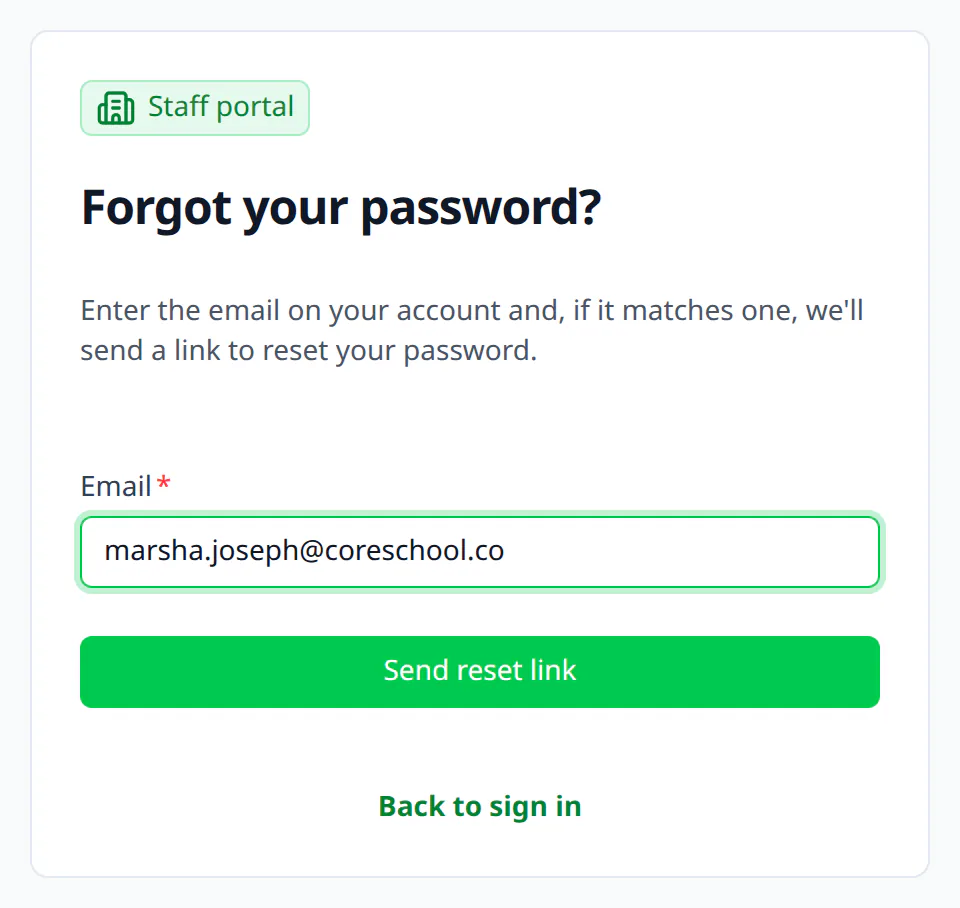
Ask for a reset link
- On your school's sign-in page, choose Forgot password?.
- Check the top of the page: it says Staff portal or Parent portal, the same as the sign-in page you came from.
- Type the email address you sign in with.
- Click Send reset link.
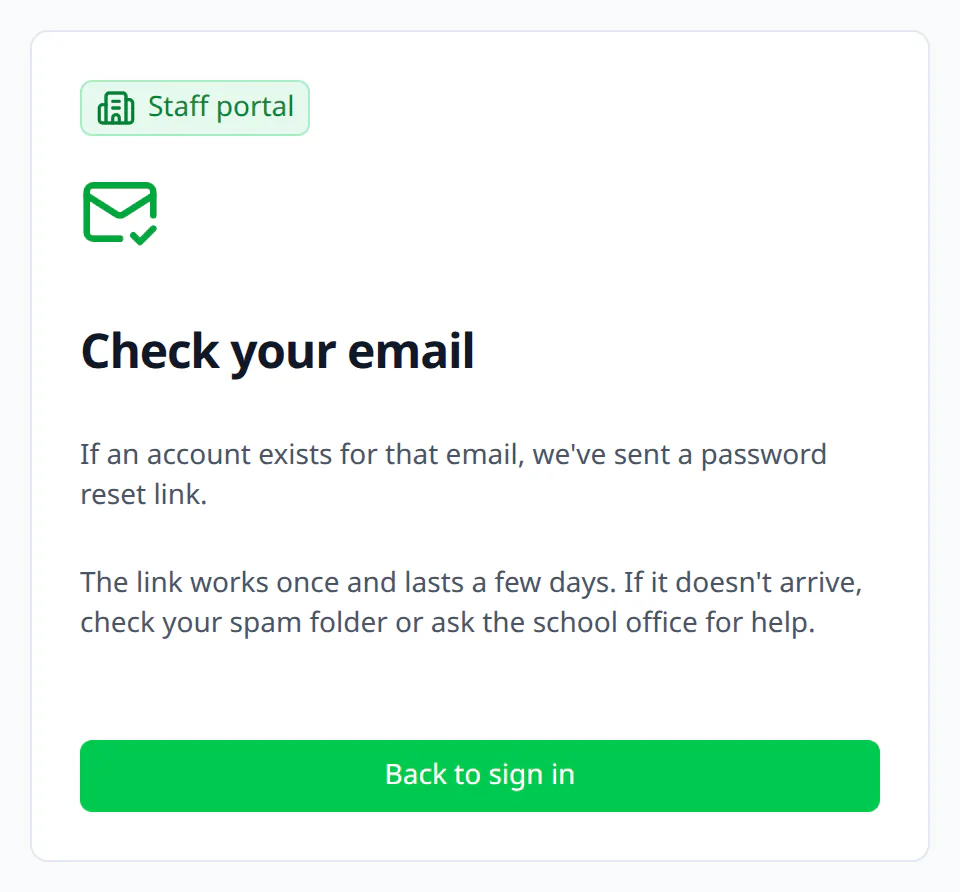
Check your email
CoreSchool shows Check your email. If an account has that address, an email with a link to reset your password is on its way. CoreSchool doesn't say whether an account has the address, to keep accounts private.
The email's subject starts with your school's name, then says choose a new password. If it doesn't arrive within a few minutes, check your spam folder.
Choose a new password
Open the link in the email. It opens Choose a new password for the portal you asked from. Type your new password, then type it again. It needs:
- at least 8 characters;
- an upper-case letter and a lower-case letter;
- a number;
- a special character, such as ! ? # or @.
CoreSchool also refuses a password that's too common, or too like your email address.
Click Save new password, then Go to sign in, and sign in with your new password.
If the link does not work
A reset link works once, and lasts three days. It also stops working if you sign in, or change your email, before you use it. If it says This link no longer works, go back to the sign-in page and ask for a new one.
If you ask for several links in a short time, CoreSchool asks you to wait a few minutes before asking again.
Never chosen a password
Forgot password? only sends a link to an account that already has a password and is switched on. If the school has just set up your account, use the email the school sent you instead. Setting your password for the first time explains how.
Still no email
Contact your school's office. They can check the email address on your account, and send you a link themselves.