Registering as a parent
Parent and guardian accounts are set up by your child's school. To get one, visit the school office. The office adds you to your child's record, and CoreSchool then emails you a link to choose your password.
Visit the school office
Take with you:
- an identity document: your national ID card, driver's permit or passport;
- an email address that you can check. It becomes the address you sign in with. Without one, the school can't give you an account;
- your phone number and home address.
The office records your details, links you to your child, and notes how you're related to them. If you have more than one child at the school, ask them to link you to each one. Each child can have up to two parents or guardians linked.
If you work at the school and are also a parent there, the office can link your parent record to your staff account. You then use the same email and password for both.
After your visit
- The school switches your account on and sends you an email. Its subject starts with the school's name, then says choose a new password.
- Open the link in the email and choose your password. Setting your password for the first time explains how.
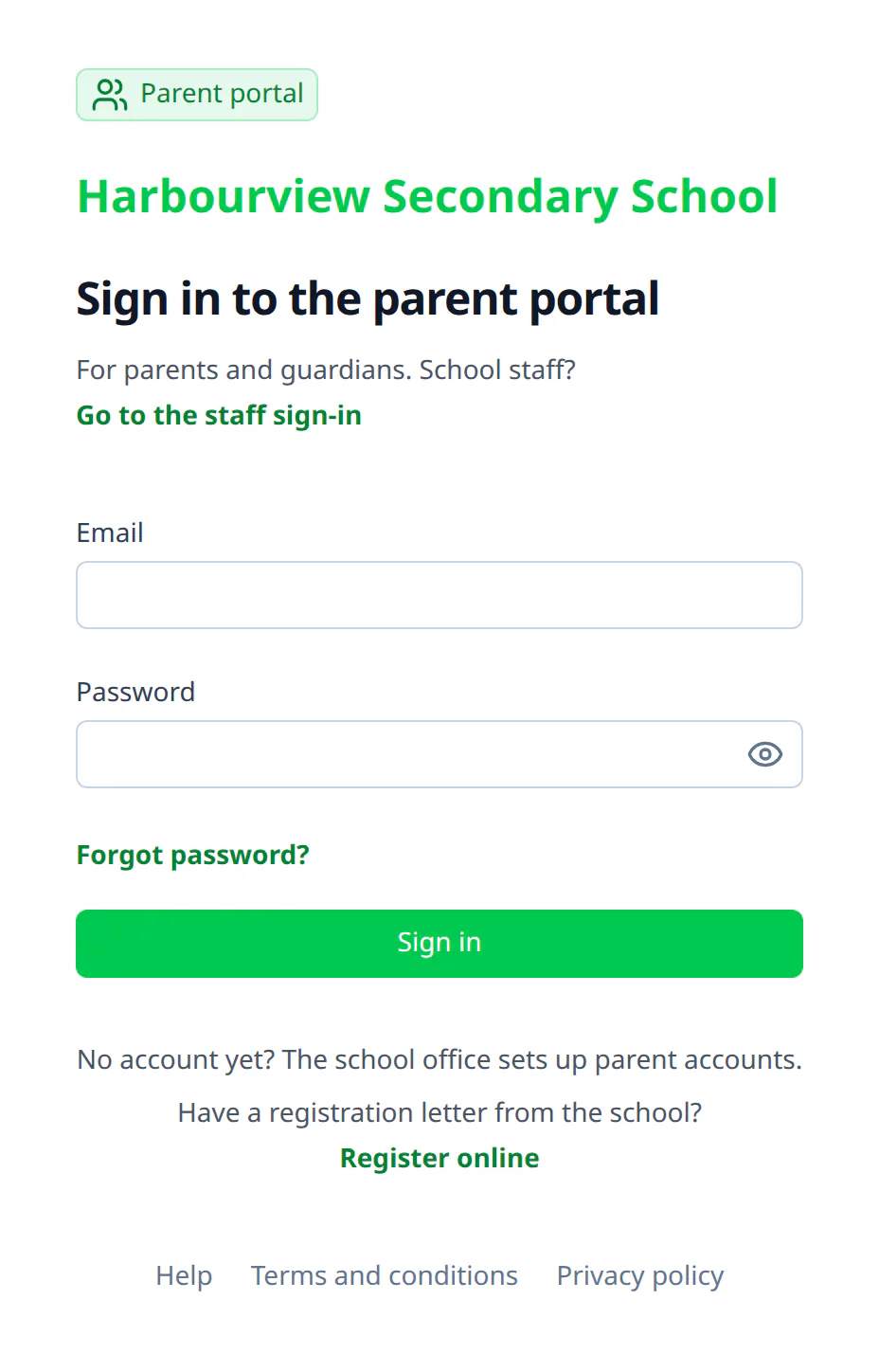
- Go to your school's CoreSchool address and choose Parent sign in. The page says Parent portal at the top. Sign in with your email address and your new password.
The link works once and lasts three days. If it doesn't arrive, check your spam folder, then contact the school office. They can check your email address and send the link again.
Your child isn't showing
If you can sign in but don't see your child, or see only one of your children, contact the school office. They can link you to the right child.
Registering online with a letter from the school
Some schools let parents of children who are about to join register online, before they start. You can only do this if the school has given you a registration letter with your child's exam details. Otherwise, visit the school office.
What you need
- The school's letter, with the exam your child sat and their candidate number.
- Your child's birth certificate, for their birth PIN.
- An email address that you can check now.
- A few minutes.
Start registering
On your school's sign-in page, choose Parent sign in. Under the sign-in boxes, next to Have a registration letter from the school?, choose Register online.
Step 1 Find your child
Choose the Exam, and type the Candidate number, your child's first and last names, their birth PIN, and their date of birth, exactly as the school has them. Click Check my child's details.
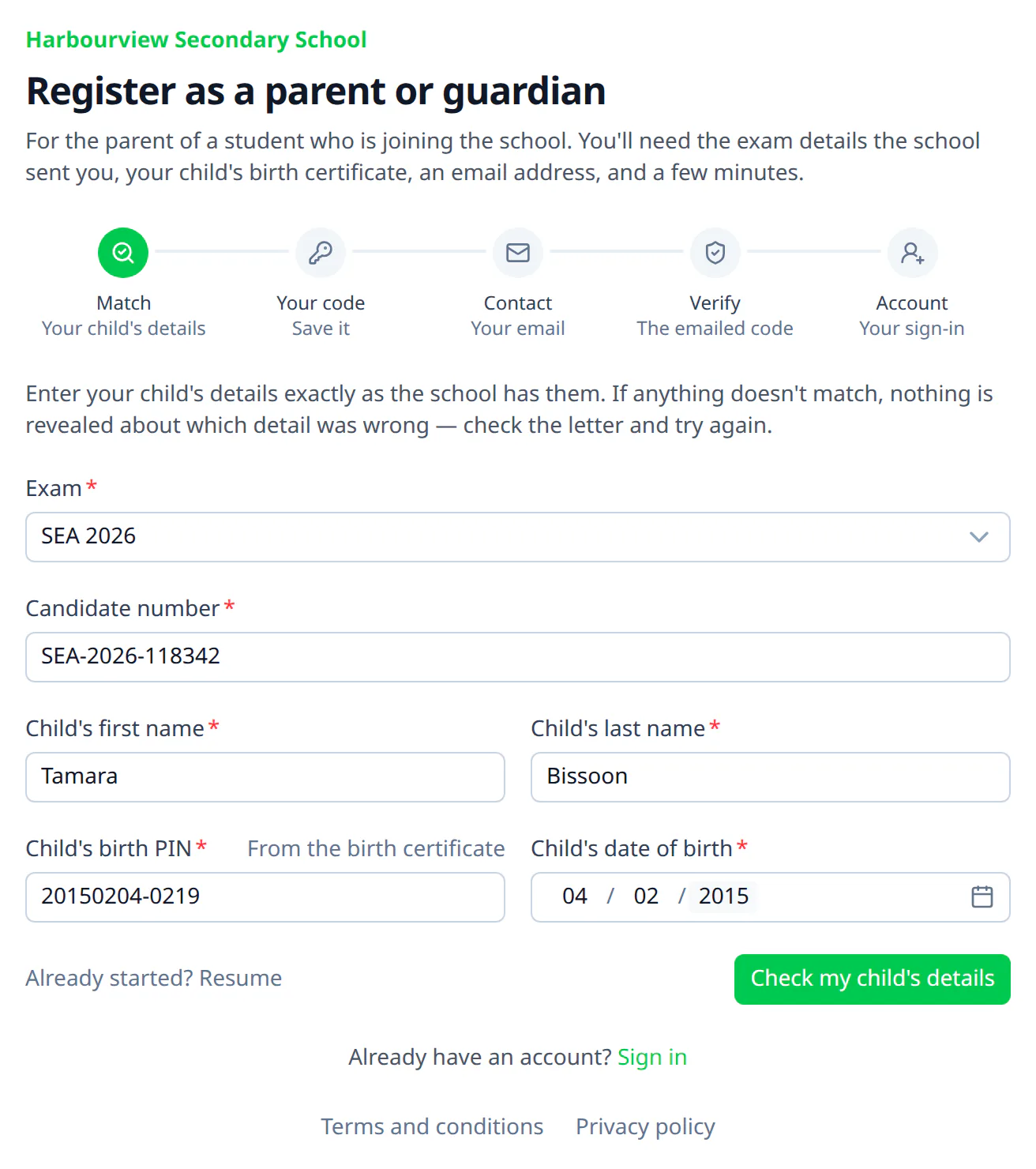
If anything doesn't match, it says No matching record found, without saying which detail was wrong. Check each one against the school's letter and the birth certificate, and try again.
If it says Registration isn't open right now, check the dates in the school's letter, or contact the school office.
Step 2 Save your code
CoreSchool shows an Application ID and a Verification code. You need both to finish registering, and to register your child afterwards. They're shown only once.
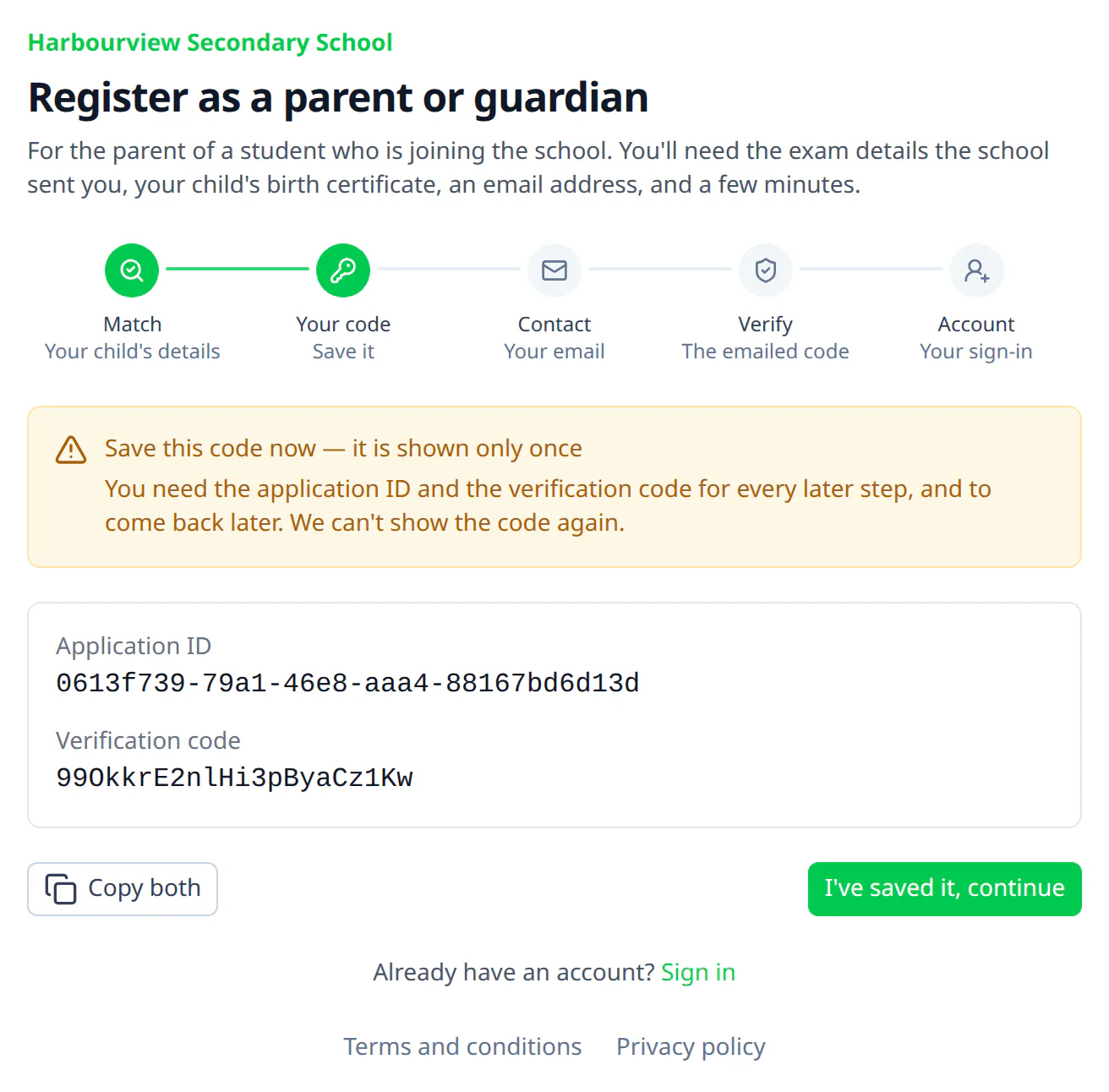
Click Copy both, and keep them somewhere safe, such as a note on your phone. Then click I've saved it, continue.
Step 3 Your email
Type your email address. This becomes the address you sign in with. A phone number is optional. Click Send the code.
Step 4 Check your email
CoreSchool emails you a 6-digit code. Type it in within 10 minutes. If it doesn't arrive, check your spam folder, or send it again.
Step 5 Your account
Type your name, choose a password, and type it again. If the school asks you to accept its terms and privacy policy, tick the box. Then click Create my account.
After you have registered online
Sign in with your email address and password. Next you fill in your own profile, which the school checks. Once the school has approved it, you register your child, under Registration in the portal's menu, using your application ID and verification code again.
If you stop partway, choose Already started? Resume on the first step, and type your application ID and verification code. If you've lost them, contact the school office.