Can't sign in
Most sign-in problems have a quick fix. Work through these in order.
Check you are on the right sign-in page
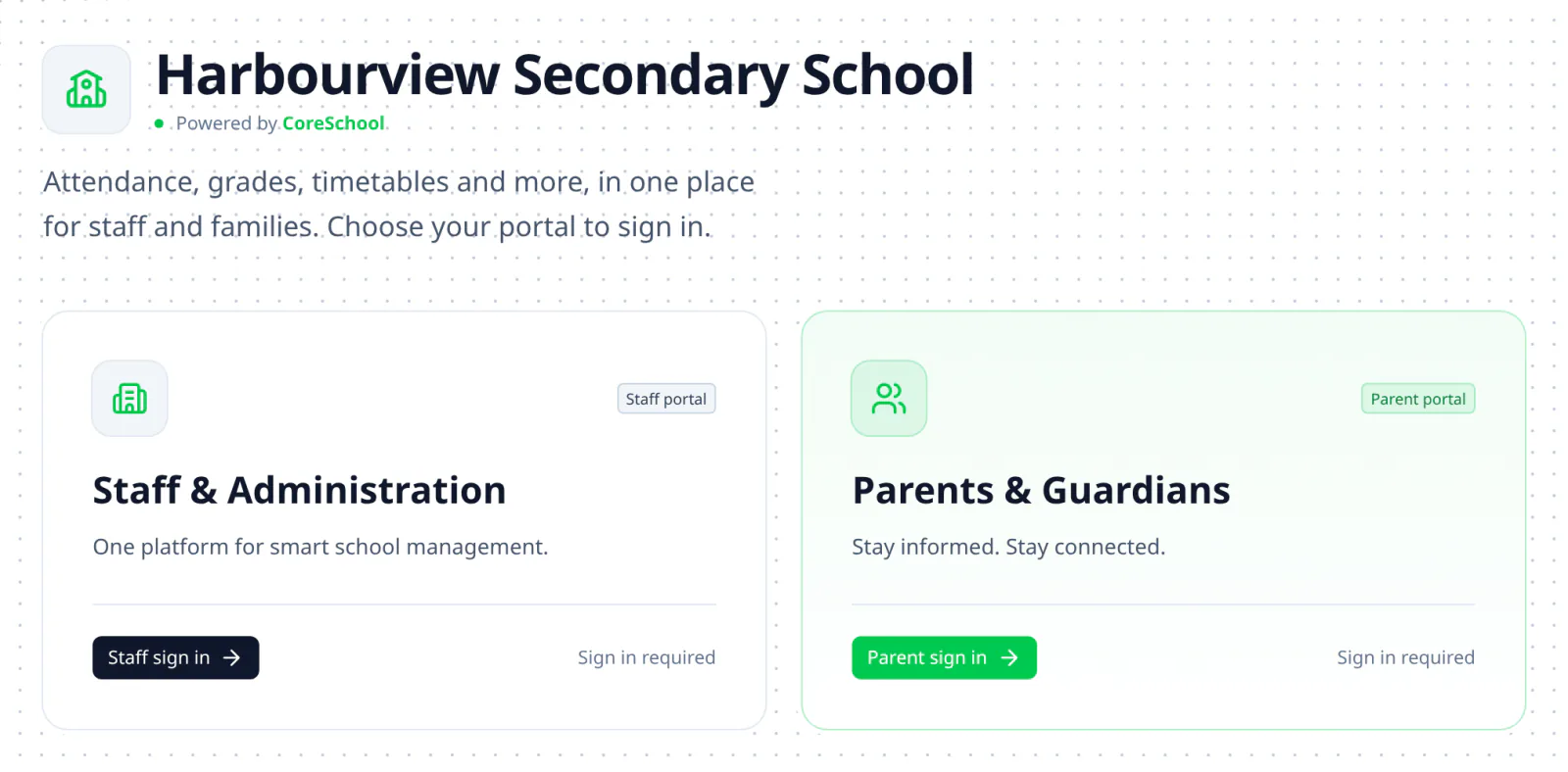
Each school has its own CoreSchool address. Its first page has two ways in: Staff sign in for school staff, and Parent sign in for parents and guardians. Make sure you choose the right one.
The sign-in page tells you which one you're on. At the top it says Staff portal or Parent portal, and its heading says Sign in to the staff portal or Sign in to the parent portal. If it's the wrong one, use the link under the heading: Go to the parent sign-in or Go to the staff sign-in.
If you work at the school and are also a parent there, the school may have given you one account for both. You then use the same email and password on either sign-in page.
Check your email and password
Sign in with the email address the school has for you, and your password. Your school's name is at the top of the sign-in page.
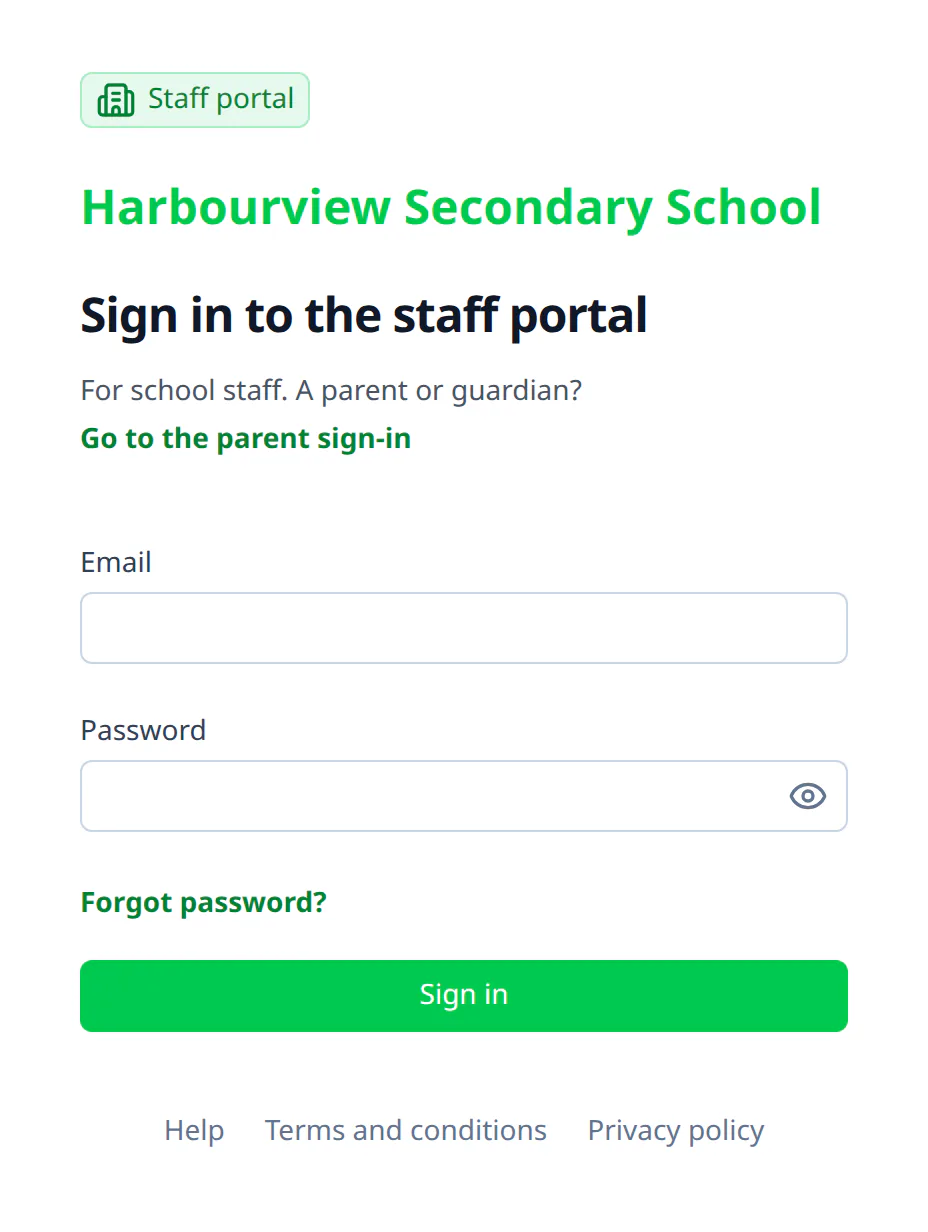
- Passwords are case-sensitive, so check Caps Lock.
- Click the eye in the password box to see what you've typed.
If you've forgotten your password, choose Forgot password?. Forgot your password explains what happens next.
New account
If the school has just set up your account, you need to choose a password before you can sign in. Use the link in the email the school sent you. Setting your password for the first time explains how.
If you've chosen a password and still can't sign in, the school may not have switched your account on yet. Contact the school office.
Too many sign-in attempts
After several wrong passwords, CoreSchool stops accepting sign-ins for a while, even with the right password, and says Too many sign-in attempts. Wait 15 minutes and try again, or reset your password.
Staff asked for a code
Staff accounts may be asked for a 6-digit code after the password. It's emailed to you, or shown in your authenticator app if you've set one up.
- If the email hasn't arrived, check your spam folder, then click Resend code.
- Trust this device for 30 days stops this browser asking for a code each time you sign in.
Signed out unexpectedly
An account can only be signed in in one place at a time. If you sign in on another device, or in another browser, you're signed out of the first one, and it says You were signed out. Sign in again to carry on there.
Your account was secured
If the sign-in page says Your account was secured, someone used the link that undoes a change to your sign-in email. CoreSchool signed your account out everywhere and replaced its password. Choose a new password from the email CoreSchool sent you, or with Forgot password?. Emails about your sign-in email explains more.
Your account was deactivated
If the sign-in page says Your account was deactivated, the school has switched your account off. Contact the school office if you think it's a mistake.
The parent portal isn't available
If the parent sign-in page says The parent portal isn't available instead of showing the sign-in boxes, your school doesn't use the parent portal. Contact the school office for help.
Parents without an account yet
Parent accounts are set up by the school office. Registering as a parent explains what to do.
Still stuck
Contact your school's office. They can check your account, switch it on, and send you a link to set a new password.